Know what ran
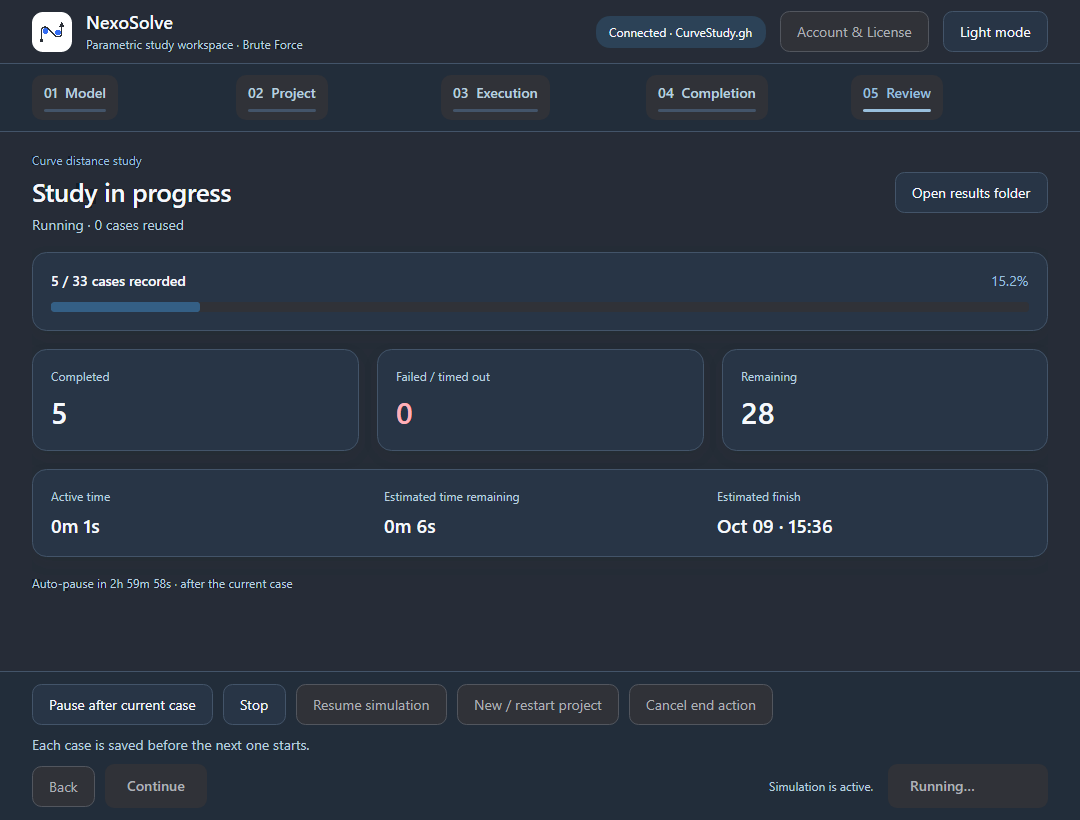
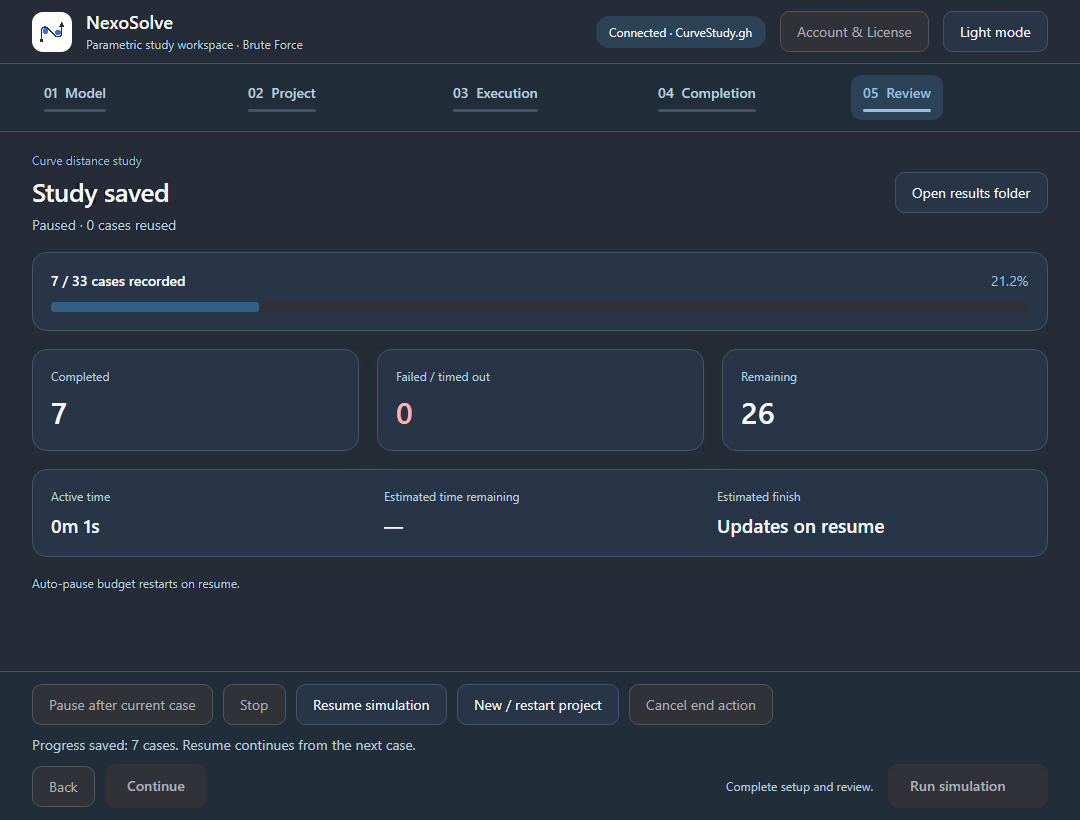
Review the full case count, completed, failed and remaining cases, active time and estimated time before and during a study.
NexoNest / Parametric studies
Explore every combination. Keep every result. NexoSolve is a standalone Windows application for finite parametric studies. Manage your study outside Grasshopper while your Grasshopper definition performs the calculations, connected through a lightweight plugin.
How can you explore a finite design space without losing progress, results, or the calculation context?
Work in the NexoSolve Windows app. Its Grasshopper plugin connects the app to your definition: inputs go in, calculated results come back, and the app saves each case locally.
Review the full case count, completed, failed and remaining cases, active time and estimated time before and during a study.
Pause at a saved case boundary, then resume with recorded progress and execution settings.
Save case results locally and export numeric data as CSV with per-scenario geometry and optional images.
Reuse matching successful cases when you expand a domain and the underlying calculation is still compatible.
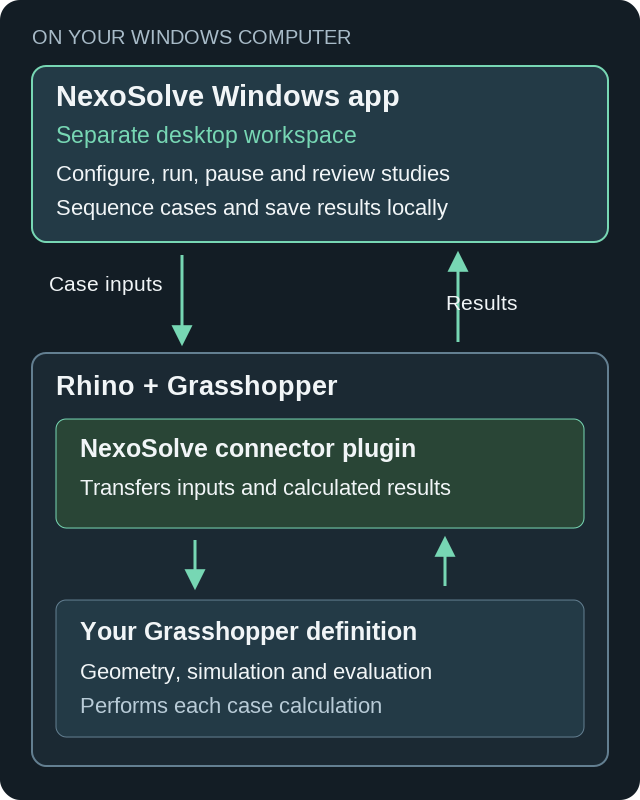
See completed, failed and remaining cases, active time and estimated time remaining in one workspace. NexoSolve runs cases serially; geometry, simulation and evaluation stay in your Grasshopper definition.
Register the model inputs and outputs with the Grasshopper connector.
Choose a local project, review the finite case count and confirm settings in the Windows app.
Run serially, keep saved results and inspect the completed study. See the component Wiki for registration and connector wiring.
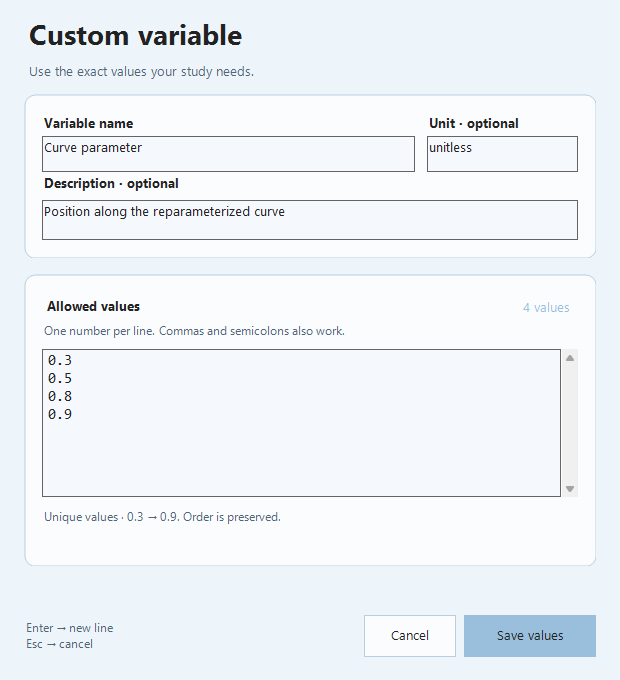
Name your variables, add units and descriptions, and preserve the order of custom values. Use connected sliders or explicit numeric lists to define the finite domain.
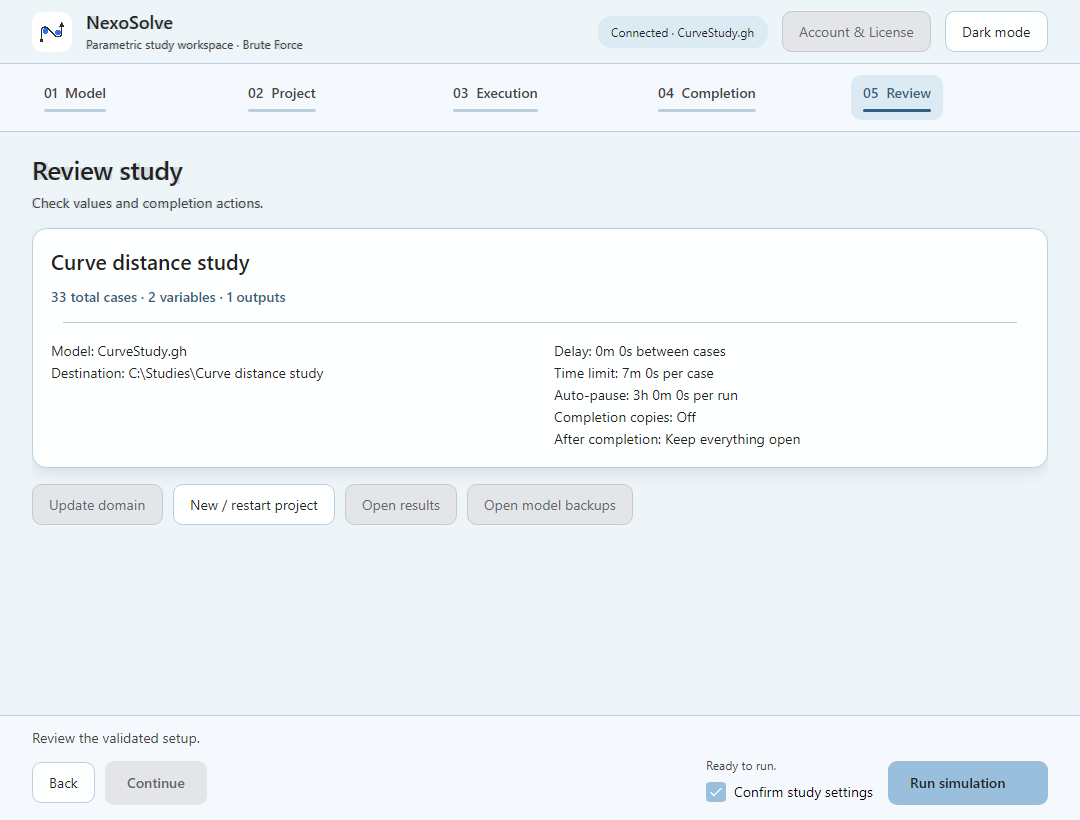
Check the full case count, project destination, timing and completion settings before starting. Exhaustive enumeration grows with the product of the variable value counts; choose a manageable domain.
Pause finishes and saves the active case before restoring the controlled values. Wait for the saved confirmation before closing the apps. Reopen the same compatible Grasshopper model and study to continue at the first unrecorded case. Synchronous Grasshopper calculations must return before pausing can finish.
Update domain can reuse successful cases with matching variable IDs, values and calculation signature; failed cases are retried. Calculation changes block reuse. Update the Connector external revision when external files, APIs, solver settings or random-state dependencies change. Resume keeps the original plan and execution settings.
Each committed case is saved locally. Reopen the study to review progress and continue when needed. Export numeric results as CSV, with per-scenario result and geometry files and optional viewport images. Model backups support recovery and comparison. The licensing service handles account and activation information; it does not receive your models or study results.
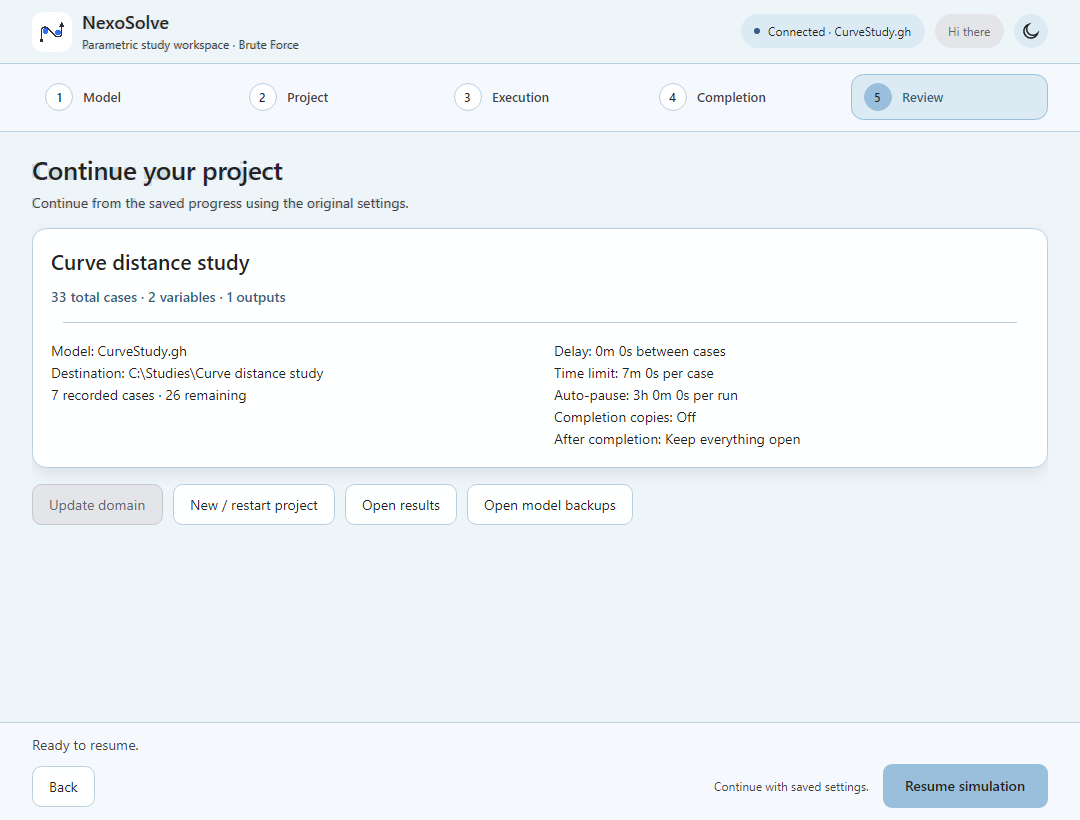
Use a bright workspace in well-lit modeling environments.
Switch to a darker workspace while keeping the same study controls and workflow.
| Area | Requirement |
|---|---|
| Operating system | Windows x64 |
| Host | Rhino 8.34 or later with Grasshopper, running .NET 8 |
| Package | Standalone Windows app (runtime included), Grasshopper connector plugin and official Samples; keep GHA, EXE and Samples together in the NexoSolve installation folder |
| Connection | Internet required for first activation and email sign-in |
| Access | Duration and conditions |
|---|---|
| Guest trial | 14 days from first online device activation; no login required |
| Verified account trial | Until day 90 from the same first activation; guest time is included |
| License | Paid license available as a 1, 3, 6 or 12-month voucher requested by email |
| Course voucher | Redeem an eligible participant code inside Account & License |
| Term | USD | IRR (Rial) |
|---|---|---|
| 1 month | $6 | 1,900,000 IRR |
| 3 months | $15 | 4,900,000 IRR |
| 6 months | $27 | 8,900,000 IRR |
| 12 months | $45 | 15,900,000 IRR |
Each option is a prepaid voucher for one user and one active device. No recurring billing. To purchase and receive your selected voucher, email nexonest.contact@gmail.com. Voucher issuance is handled manually after payment confirmation.
One active device is allowed per account. Sign in with an email verification code. Normal license checks send no email. Reinstalling does not restart the trial.
Signed offline access lasts up to seven days, bounded by trial or license expiry. If access expires during a study, the current case finishes and saves before the study pauses. Device transfers can require waiting up to seven days for an existing offline activation to expire.
Get the NexoSolve plugin through food4Rhino or Rhino Package Manager. Restart Rhino after installing or updating the plugin.
In Grasshopper, open NexoSolve > Help and place the NexoSolve Club component on the canvas. Use this component to install the separate Windows app; installing the Grasshopper plugin alone does not complete the setup.
In NexoSolve Club, click Download / Update NexoSolve and wait for installation to finish. An internet connection is needed for the download. If installation fails, record the message shown in Club before retrying. Use the same action for future app updates; close the Windows app before updating it.
Keep Rhino and your Grasshopper definition open. On Nexo Connector, click Open NexoSolve to launch the installed Windows app. Configure and run your study there while Grasshopper calculates the results. Start with a small study to check the connection and outputs.
Configure, run and review studies in the standalone NexoSolve Windows app. The plugin inside Grasshopper connects that workspace to your definition. Rhino and Grasshopper perform the model calculations and must remain open.
The current desktop runs exhaustive finite studies. It does not automatically search for an optimum or offer optimizer selection.
Your Grasshopper definition owns the analysis. Register its inputs and numeric outputs, then validate the study on your own definition.
The Grasshopper plugin and Windows app are separate parts. Add NexoSolve > Help > NexoSolve Club to the Grasshopper canvas, then click Download / Update NexoSolve. After installation, launch the app with Open NexoSolve on Nexo Connector.
App updates are user-started: use Download / Update NexoSolve in NexoSolve Club. Grasshopper plugin installation and updates are managed separately through Rhino Package Manager.
Contact support for a device transfer. Trial history and license expiry remain unchanged.
Version 0.0.4 Beta is available for Windows x64. Screenshots show the actual application with demonstration study data. Broader native Rhino acceptance remains ongoing; automated checks do not establish the validity of your simulation.
Get the Grasshopper plugin through food4Rhino or Rhino Package Manager. Then add NexoSolve > Help > NexoSolve Club in Grasshopper and click Download / Update NexoSolve to install the Windows app. NexoSolve Club is the installation and update route for the Windows app. For a voucher, email nexonest.contact@gmail.com; issuance is manual after payment confirmation.
Open NexoSolve Wiki


